
As an agency or consultant, gaining access to a client’s Apple Business account is a critical step for managing their presence on Apple Maps, verifying locations, and optimizing their listings. One common method is to be added as a User with Admin access. This article walks you through the process thoroughly.
Step 1: Ensure You Have a Business Apple ID
Before your client can add you as an Admin, you must have:
-
A dedicated Apple ID for business use (not a personal Apple ID).
-
Preferably a company-managed email (e.g., agency@yourcompany.com) rather than a public domain email (Gmail, Yahoo, etc.).
Tip: Create an Apple ID for your agency if you plan to manage multiple clients from the same account.
Step 2: Have the Client Verify Their Company Account
-
The client must have a verified Company account in Apple Business.
-
Only verified Company accounts can invite users.
Step 3: Client Sends the Admin Invitation
Your client must:
-
Log in to Apple Business with their company Apple ID.
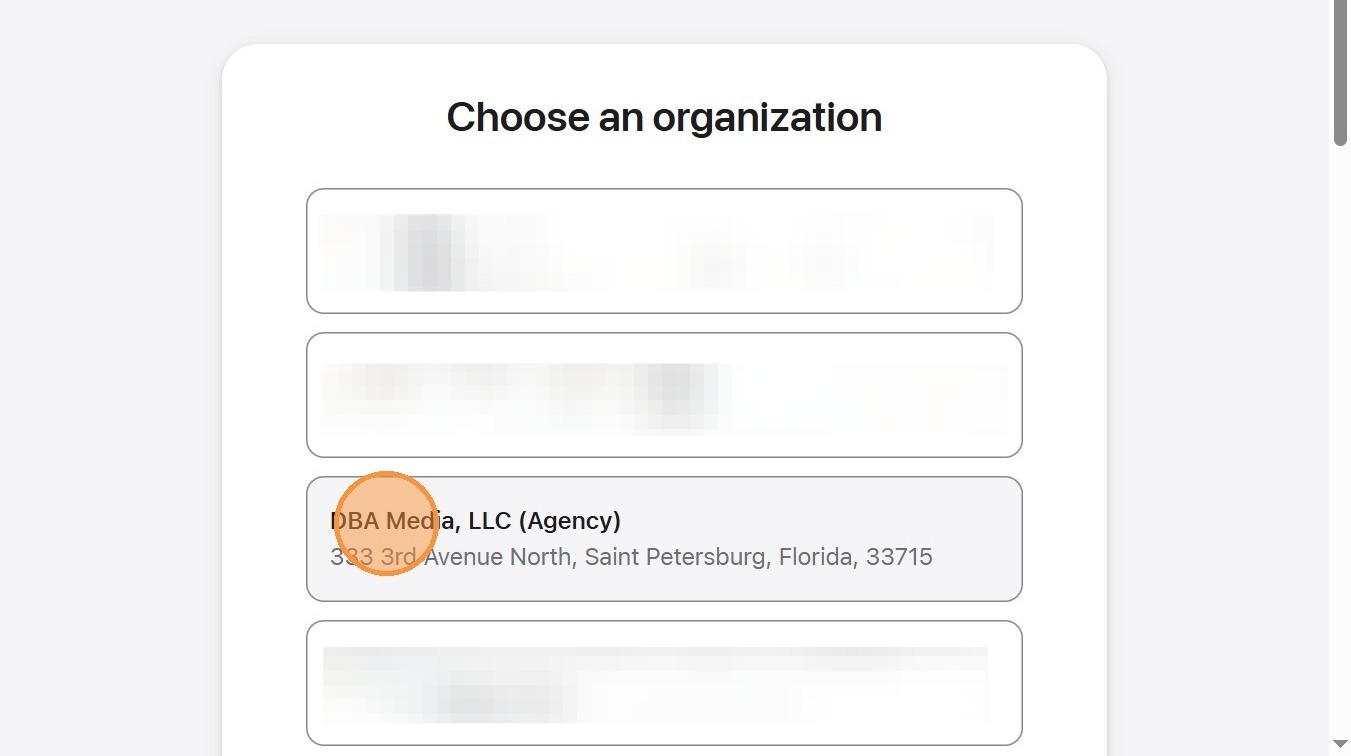
- If the client has multiple organizations, they will have to first select the organization they are going to add you to
-
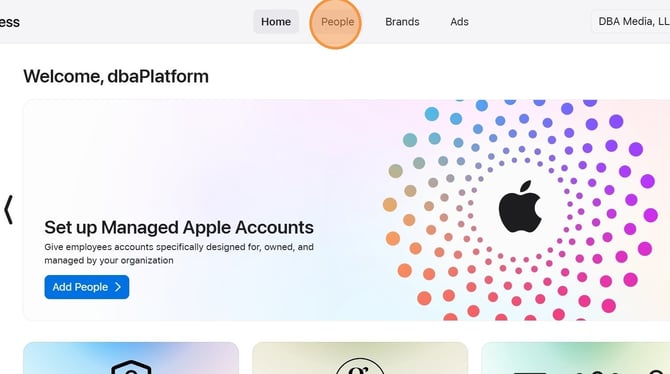
Select the People tab
-
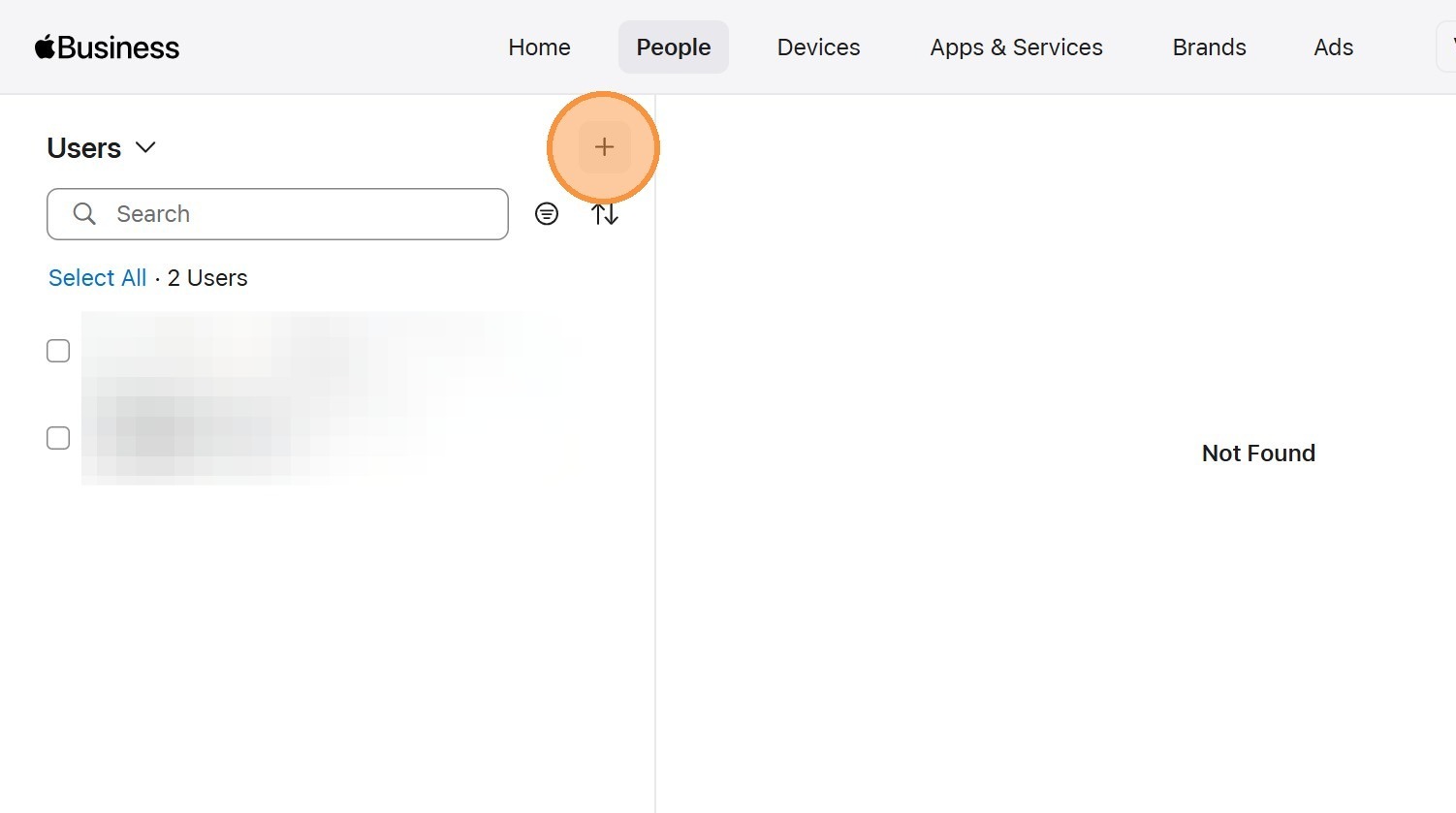
Click the add user button
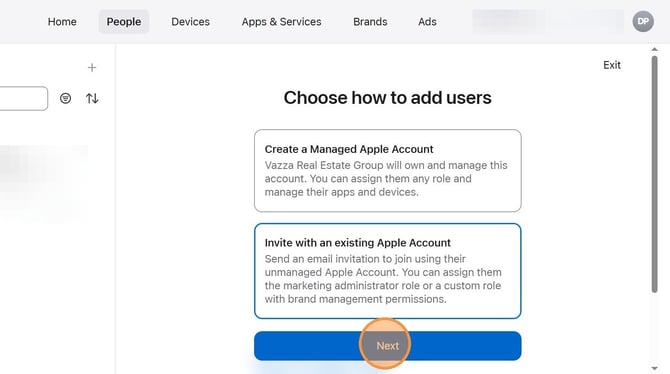
- Select "Invite with an existing Apple Account"
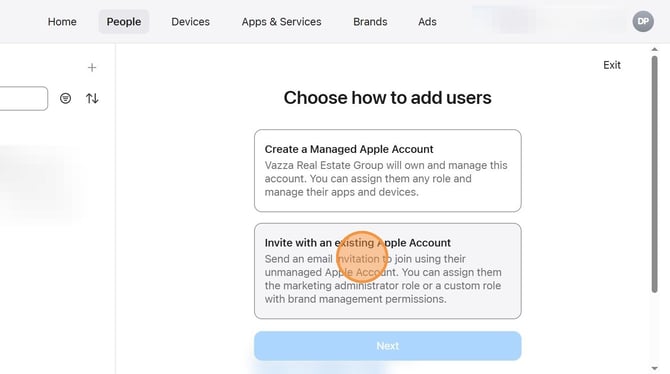
- Select "Next"
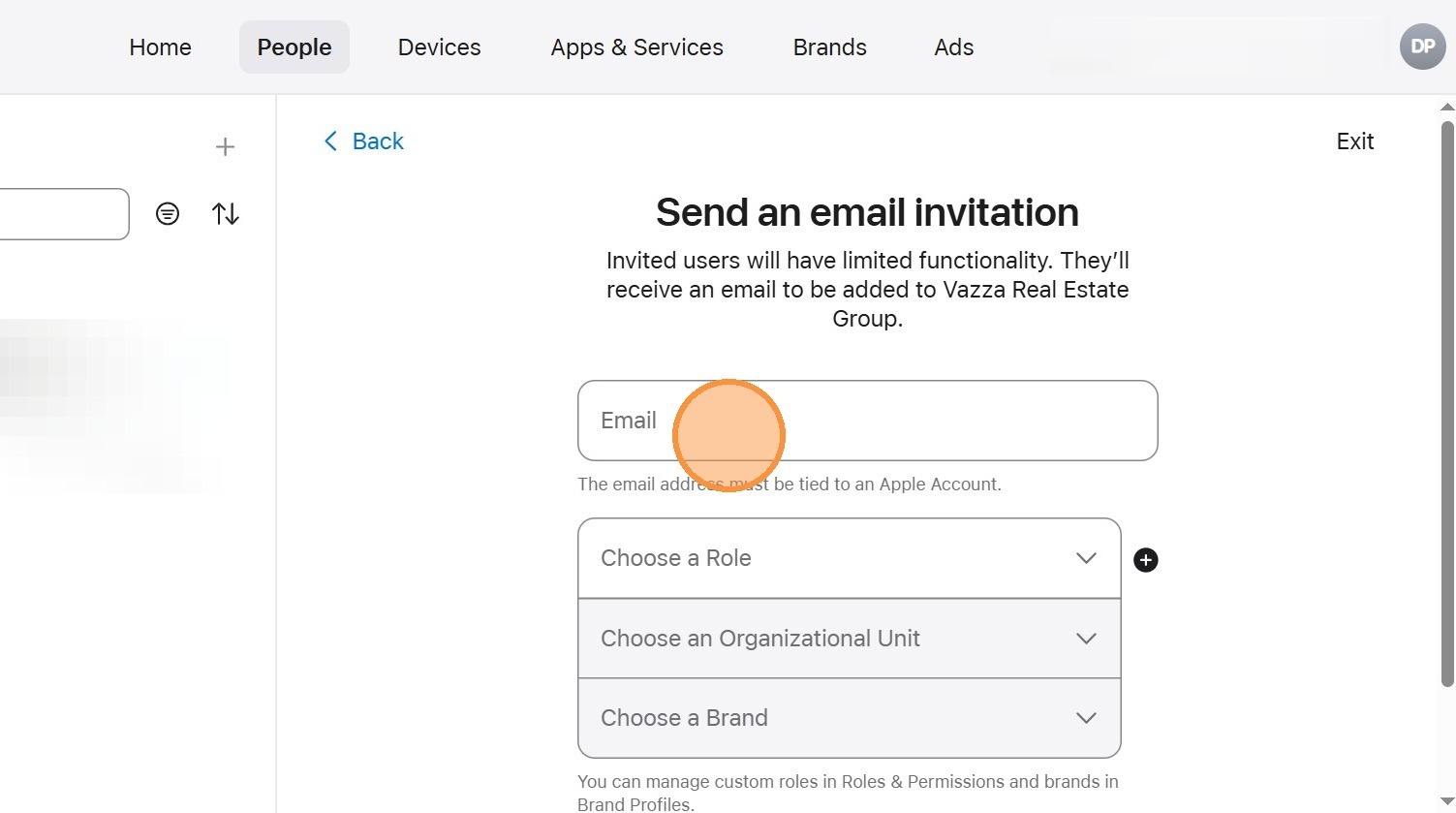
-
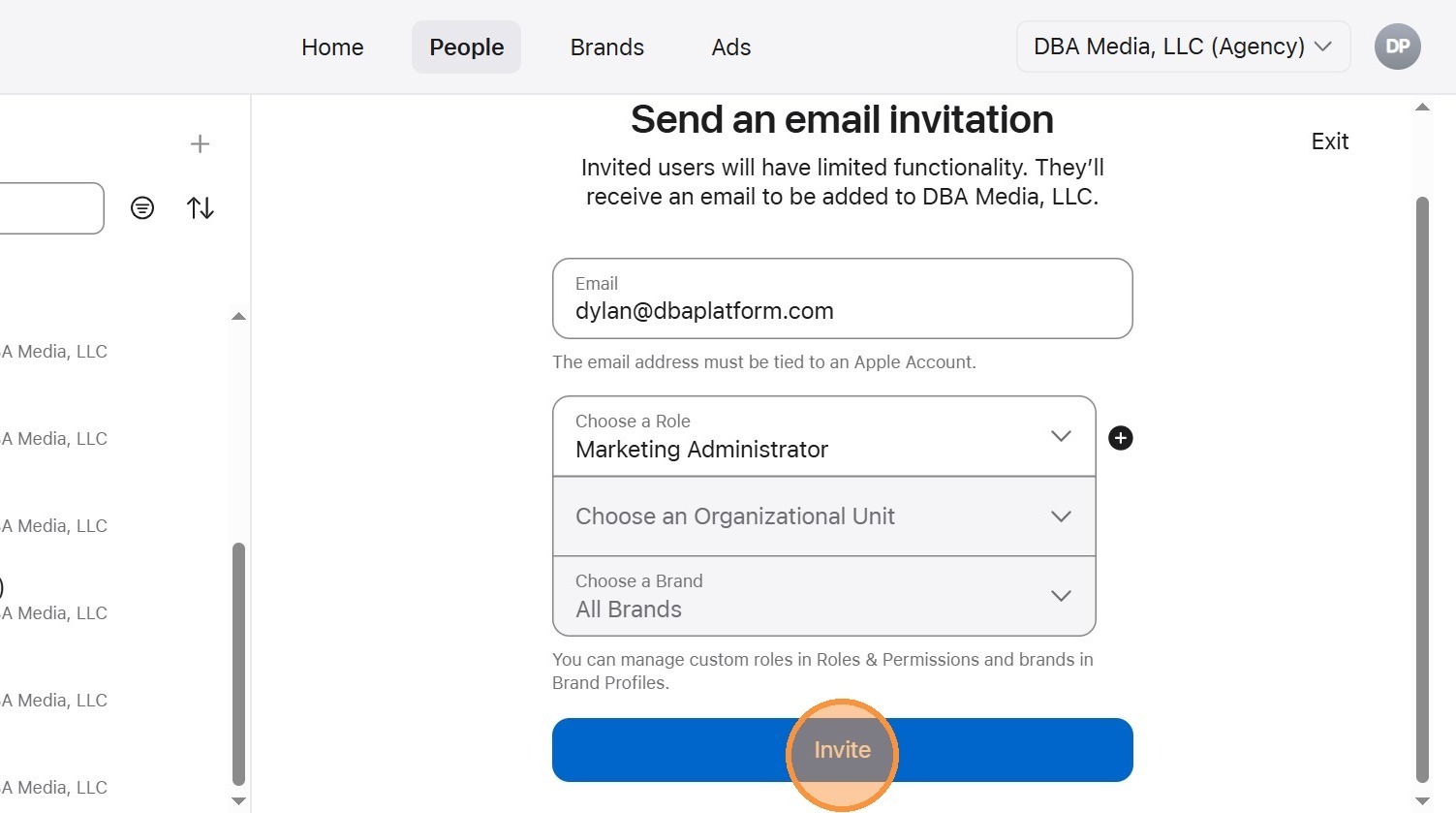
Enter the Apple ID email of the user you are looking to add (the business Apple ID the user prepared and provided to the client).
- Select the "Marketing Administrator" role
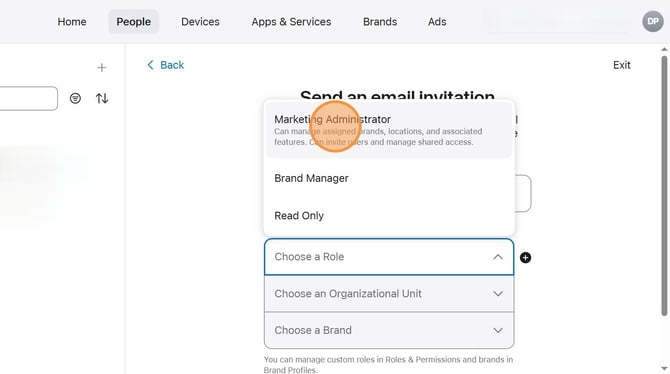
- (Nothing has to be selected for the "Choose an Organizational Unit" step if Marketing Administrator was selected in the prior step)
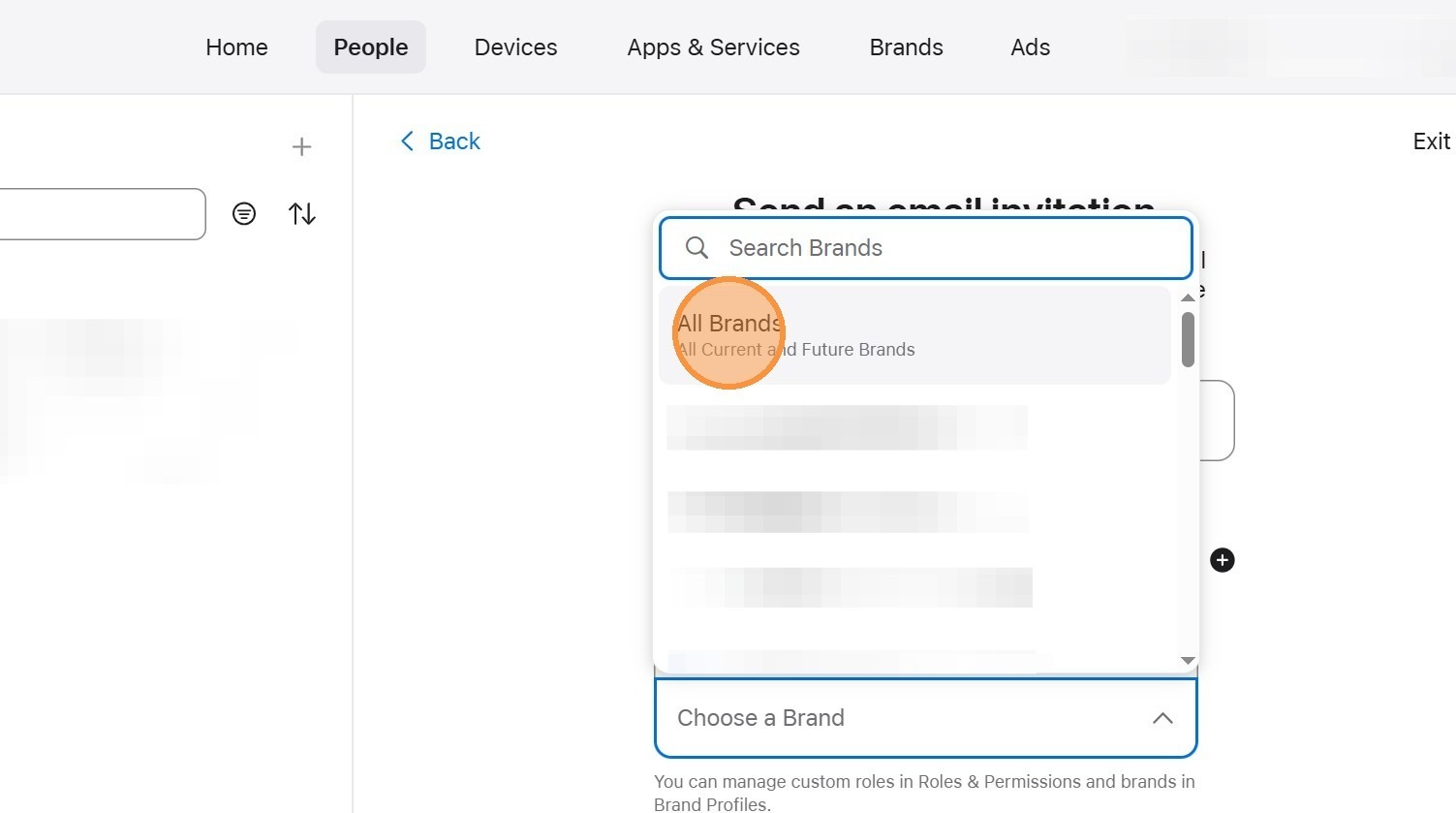
- Select "All Brands" (unless you are only giving the user access to certain brands)
-
Lastly, send the invite!
⚠️ Important: Make sure your Apple ID email is active and has 2FA set up, otherwise, the invite cannot be accepted.
Step 4: Accept the Admin Invitation
Once your client sends the invite:
-
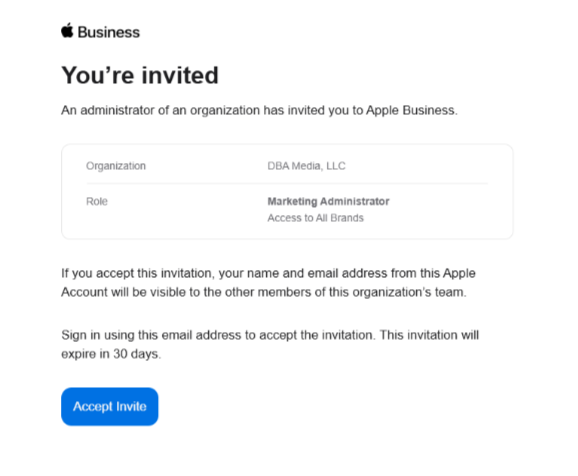
Check your Apple ID email inbox for the invitation.
-
Click “Accept Invite”. You may be redirected to Apple Business login.
-
Sign in with your Apple ID.
-
Apple will prompt you to confirm your identity using:
-
Two-Factor Authentication (via a trusted device or phone number).
-
Security questions (if 2FA isn’t fully set up yet).
-
Note: You must accept the invitation within the time window provided (usually 30 days) or the invite expires.
Summary Checklist: Getting Admin Access
| Step | Action |
|---|---|
| 1 | Create a business Apple ID with 2FA enabled |
| 2 | Ensure client’s Company account is verified |
| 3 | Client invites you as a Marketing Admin |
| 4 | Accept the invitation in your email and sign in |
| 5 | Confirm access to all Brands and Locations |